Connect WhatsApp
Link your WhatsApp number to SalesByte to start sending and receiving messages.
SalesByte supports two types of WhatsApp connections. Pick the one that fits your situation.
| Personal WhatsApp | Business WhatsApp | |
|---|---|---|
| Setup time | 60 seconds | ~5 minutes |
| Approval needed | No | Yes (Meta review) |
| Daily limit | Up to your account limit | Depends on your tier |
| Templates required | No | Yes (after 24 hours) |
| Best for | Small teams, quick start | Scaling, official brand |
Connect Personal WhatsApp
Personal WhatsApp connects via QR code — the same way WhatsApp Web works.
- Go to Connections in the left sidebar
- Click Add Personal WhatsApp
- Open WhatsApp on your phone → tap ⋮ → Linked Devices → Link a Device
- Scan the QR code shown on your screen
- Wait 10–15 seconds — your number will show as Connected ✅
Keep your phone connected to the internet. If your phone goes offline for too long, SalesByte will disconnect automatically.
Connect Business WhatsApp
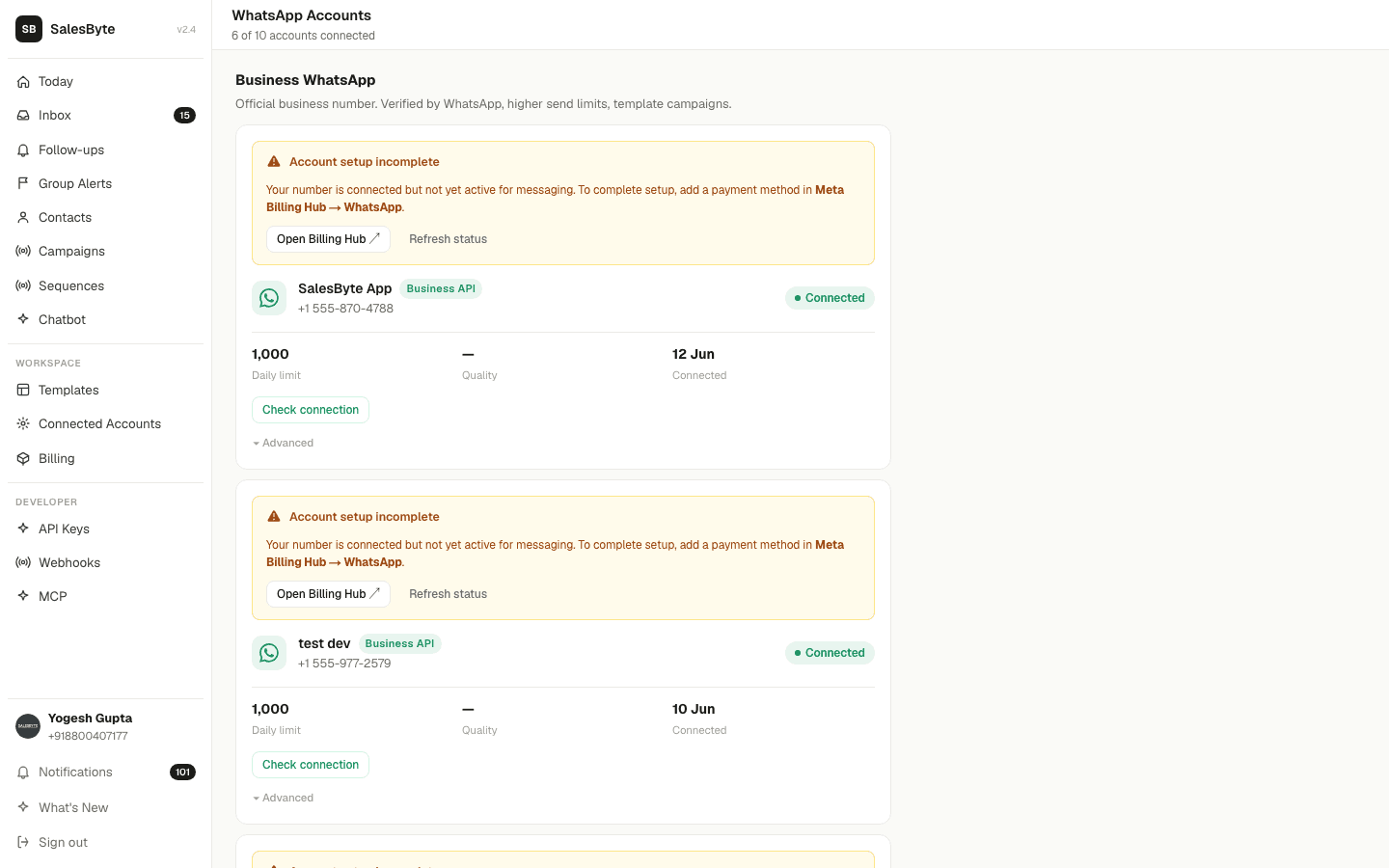
Business WhatsApp uses Meta's official API. You'll need a Facebook Business account.
- Go to Connections → click Connect Business WhatsApp
- Click Continue with Facebook
- Log in to your Facebook account
- Follow the steps to connect your WhatsApp Business Account (WABA)
- Once approved, your number appears as Active ✅
If you already have a WhatsApp Business app on your phone, you'll need to migrate that number to the API. Meta will guide you through this during setup.
Connected — what's next?
Once connected, all incoming WhatsApp messages show up in your Inbox automatically. Replies you send from SalesByte appear on WhatsApp just like a normal message.