Zoom
Turn Zoom Meeting registrations and attendance into WhatsApp follow-ups automatically.
Connect Zoom and SalesByte turns every meeting registration into a CRM contact, sends WhatsApp confirmations and reminders automatically, and follows up with attendees and no-shows once the meeting ends.
Every message type below is off by default. Turn on only what you need in Settings → Zoom.
What it does
- ✅ New Zoom registrant → new (or updated) CRM contact automatically
- ✅ WhatsApp confirmation sent when someone registers
- ✅ WhatsApp reminder sent before the meeting starts
- ✅ Automatic no-show follow-up for registrants who didn't join
- ✅ Automatic attendee follow-up for people who did join
- ✅ Push an existing contact into a meeting's registration list from inside SalesByte
- ✅ Automatically enrol new registrants into a Sequence or Journey
Connect Zoom
- Go to Settings → Zoom
- Click Connect Zoom
- Approve the request on Zoom's own screen
- You're back on the Zoom settings page, now showing Connected
That's it — no API keys, nothing to paste in.
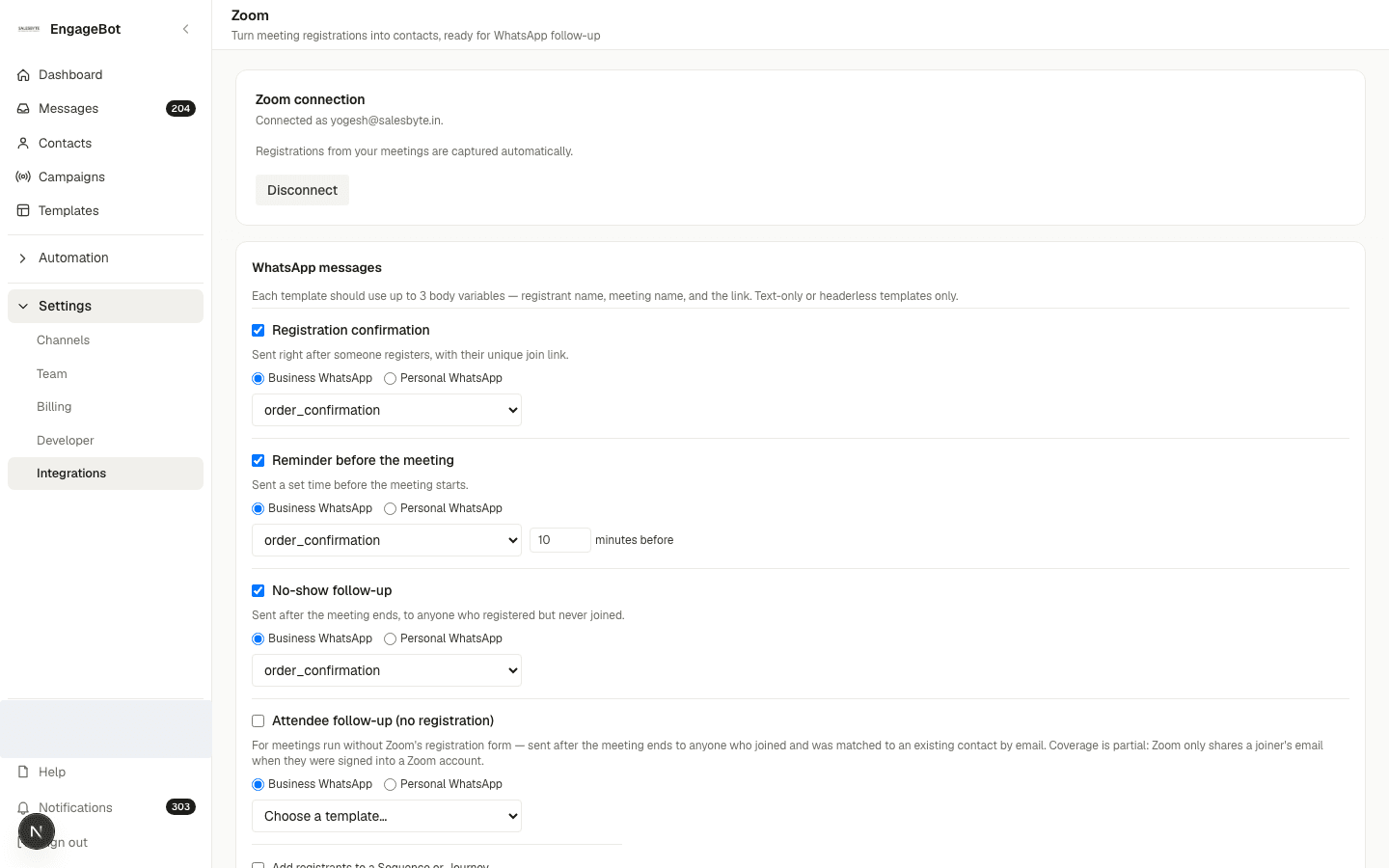
If the connection ever shows Needs reauthorization instead of Connected, just click Connect Zoom again. Nothing is lost by reconnecting.
Turn on WhatsApp messages
In the WhatsApp messages section of Settings → Zoom, turn on any of:
| Message | Sent when |
|---|---|
| Registration confirmation | Someone registers for your meeting |
| Reminder | A set number of minutes before the meeting starts |
| No-show follow-up | The meeting ends and a registrant never joined |
| Attendee follow-up | The meeting ends and a registrant did join |
For each one, choose a channel:
- Business WhatsApp — pick one of your approved templates
- Personal WhatsApp — write your own message using
{{name}},{{meeting_topic}},{{join_link}}, and{{meeting_time}}
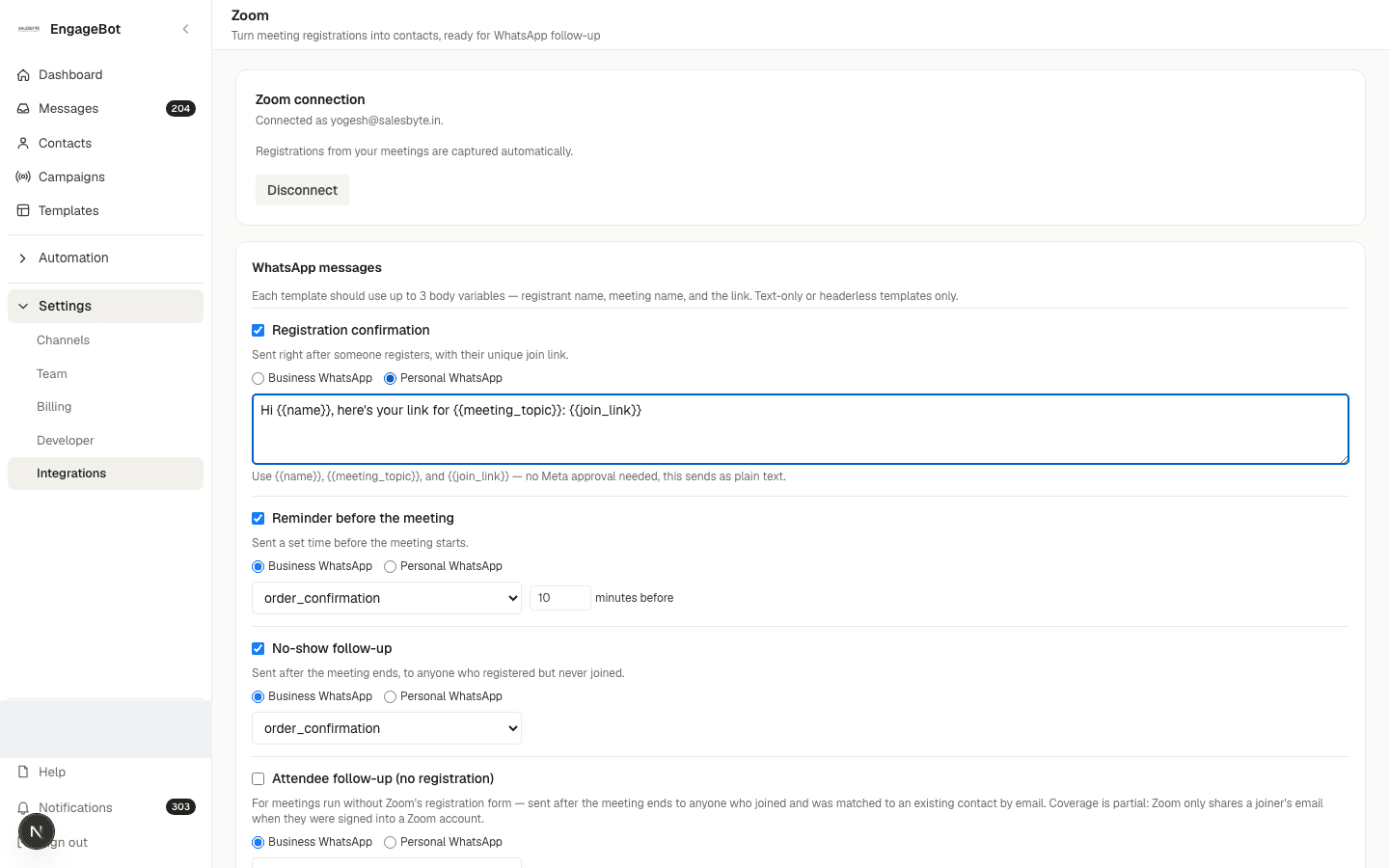
No Meta template approval needed if you use Personal WhatsApp — good for testing a message quickly before setting up a Business WhatsApp template.
Push a contact to a meeting
You don't have to wait for someone to register themselves on Zoom's page:
- Go to Settings → Zoom, scroll to Meetings
- Pick an upcoming meeting
- Search for and select a contact
- Register them — they'll get the same confirmation/reminder flow as anyone who registered directly on Zoom
Message a meeting's invitees
This is different from registrants: an invitee is someone you added to the meeting's calendar invite (Zoom's own Invite tab), not someone who filled out a registration form.
Turn on Message meeting invitees in the WhatsApp messages section and write your message. From there, it goes out two ways:
- Automatically, the moment you create the meeting on Zoom — SalesByte checks the invitee list as soon as it learns about the new meeting
- On demand, any time after — in the Meetings section, pick the meeting and click Message invitees to check again (useful if you've added more people to the invite since)
Either way, SalesByte only sends to invitees whose email matches an existing contact that already has a phone number on file, and never messages the same invitee twice for the same meeting.
This only reaches invitees who are already your contacts, with a phone saved. It never creates a new contact from an invitee's email alone.
Auto-reply with the meeting link
Turn on Automatically send the Zoom link when someone asks for it (Settings → Zoom) and an assistant reads inbound replies from your registrants — if a message is clearly asking for the meeting link, it sends back the real join link already on file for that person, with no human review before it sends.
This requires Personal WhatsApp to be connected for your workspace, and is off by default.
Send registrants into a Sequence or Journey
Turn on Sequence/Journey hand-off in Settings → Zoom and pick an active Sequence or a published Journey. Every new registrant is automatically enrolled — useful for a longer nurture flow beyond the meeting itself.
Disconnecting Zoom
You can disconnect from either side:
- In SalesByte — Settings → Zoom → Disconnect
- In Zoom — remove the app from Zoom's own App Management; SalesByte picks this up automatically, no action needed on your end
Either way:
- No further messages are sent for that connection
- Contacts already created from past registrations stay in your CRM — they're your contacts, not Zoom's
- Reconnecting later starts your message settings fresh (they don't come back automatically)
Troubleshooting
Connection shows "Needs reauthorization" — Zoom expired or revoked the token (often because the Zoom account's password changed, or the app was removed and re-added on Zoom's side). Click Connect Zoom again.
A registrant didn't get a confirmation — check that the message type was turned on before they registered, and that they have a phone number on their Zoom registration.
No-show follow-up didn't fire — this depends on Zoom's own attendance data, so it only runs after the meeting has actually ended on Zoom.
Still stuck? Contact support or email support@salesbyte.app.